' d='M777.45,250.6c-14.33-8.12-25.8-19.19-34.4-33.21-8.44-14.01-12.66-29.15-12.66-45.39s4.18-31.13,12.54-45.15c8.36-14.01,19.79-25.08,34.28-33.21,14.33-8.12,30.02-12.18,47.06-12.18s32.77,4.02,47.18,12.06c14.41,8.04,25.92,19.08,34.52,33.09,8.44,14.18,12.66,29.31,12.66,45.39s-4.22,31.38-12.66,45.39c-8.44,14.02-19.91,25.08-34.4,33.21-14.49,8.12-30.26,12.18-47.3,12.18s-32.49-4.06-46.82-12.18ZM796.32,123.51c-8.6,5.1-15.53,12.03-20.78,20.78-5.1,8.76-7.65,18-7.65,27.71s2.55,19.15,7.65,27.83c5.09,8.68,11.95,15.65,20.54,20.9,8.6,5.26,18,7.88,28.19,7.88s19.43-2.63,28.19-7.88c8.76-5.25,15.68-12.26,20.78-21.02,4.93-8.44,7.41-17.68,7.41-27.71s-2.51-19.11-7.53-27.71c-5.02-8.6-11.82-15.53-20.43-20.78-8.92-5.09-18.39-7.65-28.43-7.65s-19.35,2.55-27.95,7.65Z'/%3E%3Cpath fill='url(%23g2)' d='M971.05,246.51c-22.23-37.39-57.53-81.04-99.41-122.92-41.88-41.87-85.53-77.18-122.92-99.41-43.42-25.81-73.35-31-88.95-15.39-15.6,15.61-10.42,45.54,15.39,88.95,10.27,17.28,23.35,35.91,38.58,55.09-12.48-34.33-42.71-105.49-35.16-125.23.53-.53,2.11-1.08,4.98-1.08,7.34,0,23.15,3.63,51.58,20.53,35.55,21.13,77.35,55,117.7,95.36,40.37,40.37,74.22,82.16,95.36,117.7,23.54,39.57,21.33,54.68,19.44,56.55-1.87,1.88-16.99,4.1-56.55-19.43-21.7-12.9-45.72-30.54-70.33-51.51l-20.53,17.4c26.92,23.2,53.37,42.75,77.26,56.96,27.1,16.11,48.94,24.19,65.33,24.19,9.87,0,17.75-2.93,23.62-8.8,15.6-15.6,10.42-45.54-15.39-88.95Z'/%3E%3Cpath fill='url(%23g3)' d='M945.96,209.05c-5.28,7.23-12.34,13.08-20.56,16.93-18.43-25.16-41.47-51.97-67.37-78.31,4.97-7.5,11.79-13.63,19.79-17.83,26,26.52,49.25,53.6,68.14,79.22Z'/%3E%3Cpath fill='url(%23g4)' d='M986.45,8.79c-5.87-5.87-13.75-8.79-23.64-8.79-16.38,0-38.22,8.07-65.32,24.19-23.02,13.7-48.44,32.35-74.37,54.48,6.68,5.68,13.39,11.63,20.1,17.79,23.76-20.08,46.89-36.96,67.85-49.42,39.56-23.52,54.7-21.32,56.56-19.43,1.89,1.86,4.11,17-19.43,56.56-21.15,35.55-55.01,77.33-95.38,117.7-40.35,40.35-82.15,74.23-117.7,95.35-28.41,16.9-44.24,20.53-51.57,20.53-2.86,0-4.44-.55-4.97-1.1-7.54-19.72,22.68-90.89,35.14-125.22-15.23,19.17-28.29,37.79-38.56,55.08-25.83,43.43-31.01,73.34-15.4,88.96,15.59,15.61,45.53,10.43,88.96-15.4,37.39-22.23,81.03-57.54,122.91-99.39,41.88-41.88,77.19-85.54,99.41-122.93,25.81-43.4,30.99-73.34,15.4-88.96Z'/%3E%3C/svg%3E)


Change FiveM artifacts in the game panel
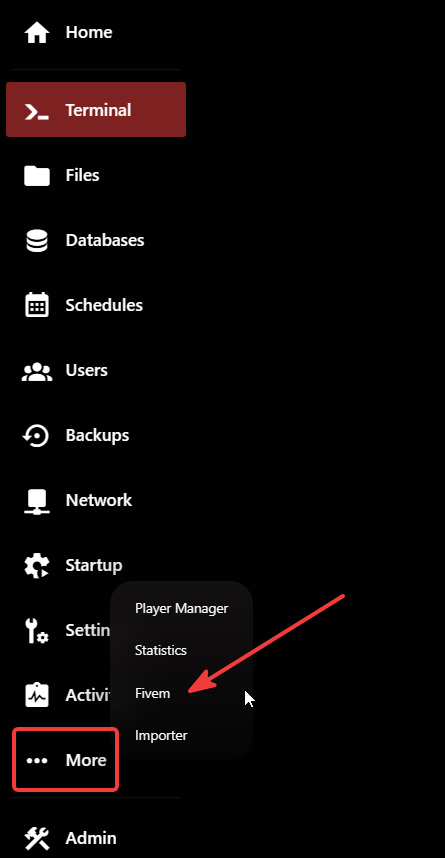
Update the FXServer build your FiveM server runs on — stop the server, clear the alpine folder, then install new artifacts from More → FiveM in the game panel.
FiveM artifacts are the FXServer build your server runs on. Updating them brings the latest features, security fixes and better compatibility with newer resources. In the game panel you can switch builds in a few clicks — here is the full process.
1. Stop the server
Open your server in the panel and click Stop. Wait until the status is fully Offline before continuing — changing artifacts while the server is running can corrupt the build.
2. Delete the alpine folder
Go to Files (File Manager) in the server root and delete the alpine folder. It holds the current FXServer runtime; removing it lets the new artifacts install cleanly, without leftover binaries from the old build.
3. Open More → FiveM
In the left menu click More and choose FiveM from the dropdown (see the screenshot).
4. Open Change Artifacts
On the FiveM page click Change Artifacts to load the list of available FXServer builds.
5. Pick a build and install
Select the artifacts you want — we recommend the latest build — and click Install. The panel downloads and unpacks the chosen build into a fresh alpine folder.
6. Start the server
When the install finishes, return to the console and click Start. Watch the console: once you see Server started, you are running on the new artifacts.
Back up your server — or at least server.cfg and your resources — before changing artifacts. If the newest build causes issues with your resources, just repeat these steps and pick a slightly older, stable build.
That is it. Your FiveM server is now running on the updated artifacts.
Was this article helpful?
Be the first to rate it