' d='M777.45,250.6c-14.33-8.12-25.8-19.19-34.4-33.21-8.44-14.01-12.66-29.15-12.66-45.39s4.18-31.13,12.54-45.15c8.36-14.01,19.79-25.08,34.28-33.21,14.33-8.12,30.02-12.18,47.06-12.18s32.77,4.02,47.18,12.06c14.41,8.04,25.92,19.08,34.52,33.09,8.44,14.18,12.66,29.31,12.66,45.39s-4.22,31.38-12.66,45.39c-8.44,14.02-19.91,25.08-34.4,33.21-14.49,8.12-30.26,12.18-47.3,12.18s-32.49-4.06-46.82-12.18ZM796.32,123.51c-8.6,5.1-15.53,12.03-20.78,20.78-5.1,8.76-7.65,18-7.65,27.71s2.55,19.15,7.65,27.83c5.09,8.68,11.95,15.65,20.54,20.9,8.6,5.26,18,7.88,28.19,7.88s19.43-2.63,28.19-7.88c8.76-5.25,15.68-12.26,20.78-21.02,4.93-8.44,7.41-17.68,7.41-27.71s-2.51-19.11-7.53-27.71c-5.02-8.6-11.82-15.53-20.43-20.78-8.92-5.09-18.39-7.65-28.43-7.65s-19.35,2.55-27.95,7.65Z'/%3E%3Cpath fill='url(%23g2)' d='M971.05,246.51c-22.23-37.39-57.53-81.04-99.41-122.92-41.88-41.87-85.53-77.18-122.92-99.41-43.42-25.81-73.35-31-88.95-15.39-15.6,15.61-10.42,45.54,15.39,88.95,10.27,17.28,23.35,35.91,38.58,55.09-12.48-34.33-42.71-105.49-35.16-125.23.53-.53,2.11-1.08,4.98-1.08,7.34,0,23.15,3.63,51.58,20.53,35.55,21.13,77.35,55,117.7,95.36,40.37,40.37,74.22,82.16,95.36,117.7,23.54,39.57,21.33,54.68,19.44,56.55-1.87,1.88-16.99,4.1-56.55-19.43-21.7-12.9-45.72-30.54-70.33-51.51l-20.53,17.4c26.92,23.2,53.37,42.75,77.26,56.96,27.1,16.11,48.94,24.19,65.33,24.19,9.87,0,17.75-2.93,23.62-8.8,15.6-15.6,10.42-45.54-15.39-88.95Z'/%3E%3Cpath fill='url(%23g3)' d='M945.96,209.05c-5.28,7.23-12.34,13.08-20.56,16.93-18.43-25.16-41.47-51.97-67.37-78.31,4.97-7.5,11.79-13.63,19.79-17.83,26,26.52,49.25,53.6,68.14,79.22Z'/%3E%3Cpath fill='url(%23g4)' d='M986.45,8.79c-5.87-5.87-13.75-8.79-23.64-8.79-16.38,0-38.22,8.07-65.32,24.19-23.02,13.7-48.44,32.35-74.37,54.48,6.68,5.68,13.39,11.63,20.1,17.79,23.76-20.08,46.89-36.96,67.85-49.42,39.56-23.52,54.7-21.32,56.56-19.43,1.89,1.86,4.11,17-19.43,56.56-21.15,35.55-55.01,77.33-95.38,117.7-40.35,40.35-82.15,74.23-117.7,95.35-28.41,16.9-44.24,20.53-51.57,20.53-2.86,0-4.44-.55-4.97-1.1-7.54-19.72,22.68-90.89,35.14-125.22-15.23,19.17-28.29,37.79-38.56,55.08-25.83,43.43-31.01,73.34-15.4,88.96,15.59,15.61,45.53,10.43,88.96-15.4,37.39-22.23,81.03-57.54,122.91-99.39,41.88-41.88,77.19-85.54,99.41-122.93,25.81-43.4,30.99-73.34,15.4-88.96Z'/%3E%3C/svg%3E)


How to create your Fusiora account
Step-by-step signup, email verification and initial setup of your client area.
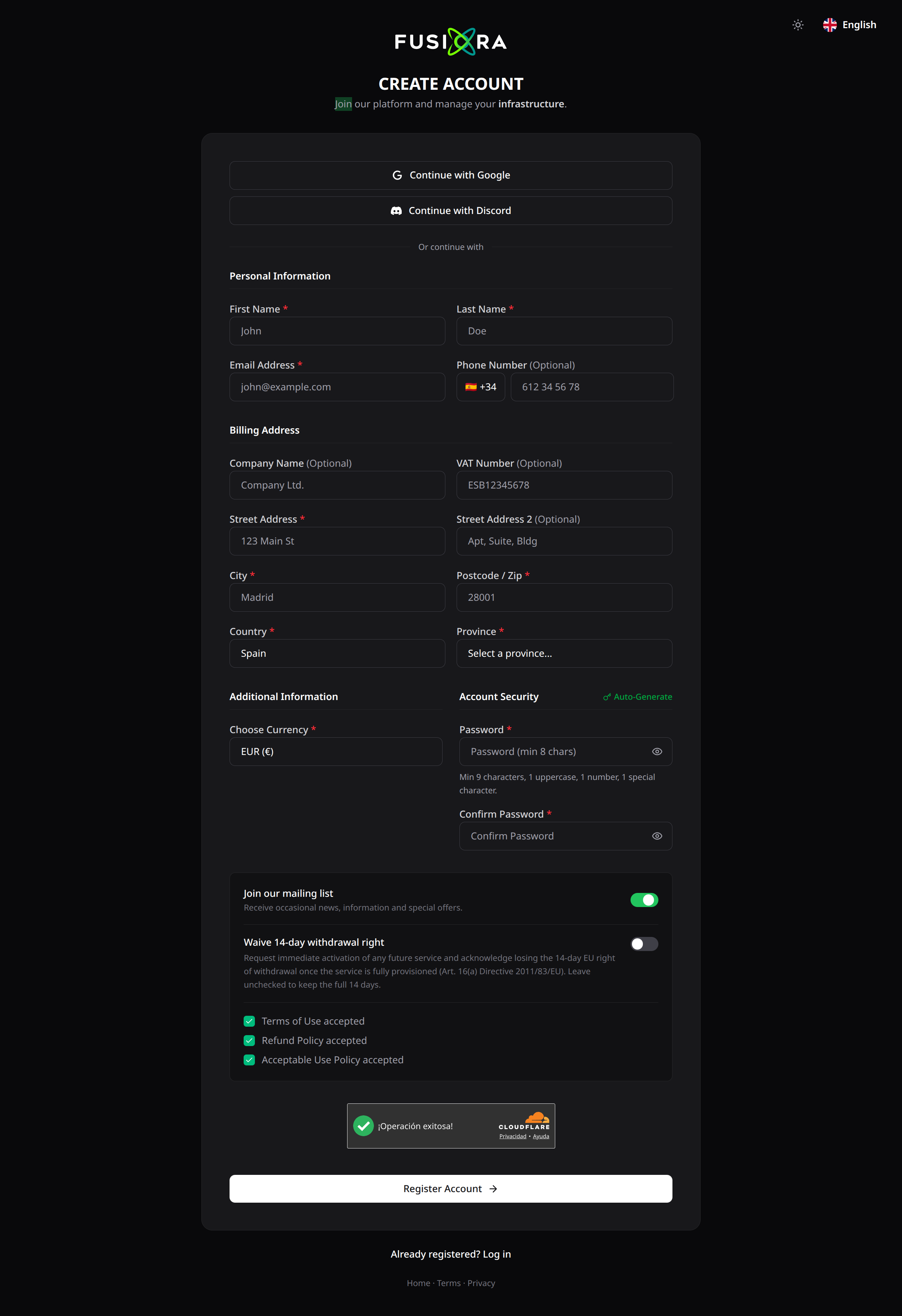
Creating your account at fusiora.com/register takes about 3 minutes. From your client area you'll manage services, invoices and support.
1. Accept the legal documents
Three required steps: Terms, Refunds and Acceptable Use. Scroll to the bottom and wait for the timer to continue.
2. Choose how to sign up
- Google or Discord — one-click signup, legal docs accepted implicitly.
- Email and password — manual signup with the full form.
3. Personal and billing details
Fill in the fields marked with a red asterisk:
- First name, last name and email — email becomes your username.
- Full billing address — city, postcode, country and state. It will appear on your invoices.
- Company and VAT/Tax ID — optional for individuals.
4. Secure password
Minimum 9 characters, with at least 1 uppercase, 1 number and 1 special character. Click Auto-generate to create a random 16-character one.
5. Verify your email
You'll get a message from noreply@fusiora.com. Click the link within 24 h. If it doesn't arrive, check spam or request a resend from the client area.
6. Enable 2FA
Once inside, go to Security Settings > Two-Factor Authentication and pair a TOTP app (Authy, Google Authenticator…). Save the backup codes.
Common issues
- Duplicate email — an account already exists with this address. Use login or recover your password.
- Captcha blocked — disable VPN and reload.
- Email not arriving — check spam or open a ticket at support.
Done. You can now order VPS, Web Hosting, Game Hosting or domains from your client area.
Was this article helpful?
Be the first to rate it